Contents
01 Why This Works: The Idea Behind the Timer
Think about how a sprinter runs versus how someone wanders around a track all afternoon. The sprinter knows exactly where the finish line is, so they can pour everything into a short burst and then rest. The wanderer has no finish line, so they never really run, and they never really rest either. Most workdays are the wandering kind: you sit down at 9am facing eight open-ended hours, and the work spreads out to fill all of it.
The Pomodoro Technique turns your day into sprints. You pick one thing, set a timer for 25 minutes, and work on only that until the timer rings. Then you take a 5 minute break. That's it. Each 25 minute block is called a "pomodoro," which is Italian for tomato, because the fellow who came up with the method in the late 1980s, Francesco Cirillo, used a tomato-shaped kitchen timer while he was a university student.
1.1 Why a Timer Beats Willpower
The timer does four things that are genuinely hard to do on your own:
- It makes starting easy. "Write the report" is intimidating and easy to put off. "Work on the report for 25 minutes" is not. You can talk yourself into 25 minutes of almost anything, and starting is the part most people actually get stuck on.
- It gives distractions a waiting room. When a stray thought shows up mid-session ("I should check that email"), you have a ready answer: not now, in 25 minutes. The interruption gets a scheduled home instead of derailing you.
- It forces you to rest before you're wrecked. Most people work until their focus collapses, then rest badly while feeling guilty. Scheduled breaks arrive while you're still sharp, so you come back with something left in the tank.
- It turns effort into a number. At day's end you don't have a vague sense of being busy. You have "six pomodoros, four on the report." That's a real measurement, and real measurements are what let you plan.
1.2 The Rhythm
The standard cycle looks like this, and PomoFocus walks you through it automatically:
| Step | Length | What You Do |
|---|---|---|
| Focus | 25 min | One task. No email, no phone, no "quick" detours. |
| Short break | 5 min | Stand up. Look out a window. Genuinely stop working. |
| Repeat | — | Four focus sessions in total. |
| Long break | 15 min | After the fourth session. Lunch, a walk, real rest. |
02 Overview
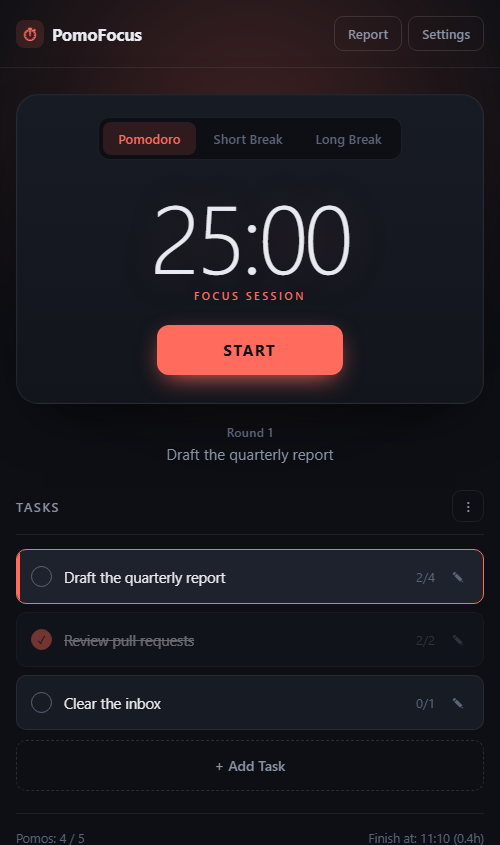
PomoFocus is a focus timer that runs in your web browser. You list what you plan to work on, estimate how many 25 minute sessions each item will take, and the app walks you through focus periods and breaks while quietly keeping score. It's built for anyone who sits down to work and finds the day gone with little to show for it.
2.1 Key Benefits
- Nothing to install — Open a web address and it runs. You can add it to your phone or desktop like a real app, but you don't have to.
- Works with no internet — Once loaded, it keeps working on a plane, on the subway, or with the wifi off.
- Know when you'll finish — Estimate your tasks and the app tells you what time you'll be done, breaks included.
- See your actual effort — A running history of focused hours per day, with a chart and a day streak.
- No account, no signup — There is no login and no cloud. Your data lives in your browser and goes nowhere else.
- Tune it to your brain — Every duration, sound, and automatic behavior can be adjusted.
03 Installing PomoFocus
3.1 Just Use It in a Browser
Go to the address below in any modern browser on any device. That's the whole setup.
3.2 Install It Like an App (Recommended)
Installing gives you an icon, a window with no browser clutter, and reliable offline use. It takes about ten seconds and does not go through an app store.
| Device | How to Install |
|---|---|
| Windows / Mac (Chrome, Edge) |
Click the small install icon at the right edge of the address bar, then confirm. Or open the browser menu and choose Install PomoFocus. |
| iPhone / iPad (Safari) |
Tap the Share button, scroll down, tap Add to Home Screen. |
| Android (Chrome) |
Tap the three-dot menu, then Install app or Add to Home screen. |
3.3 System Requirements
- Any current browser: Chrome, Edge, Firefox, or Safari
- Windows, macOS, Linux, iOS, or Android
- An internet connection for the first load only
04 Quick Start
Your first session, start to finish:
- Click + Add Task and type what you're working on.
- Set Est Pomodoros to your honest guess at how many 25 minute blocks it needs, then click Save.
- Click START.
- Work on that one task until the alarm sounds.
- Take the 5 minute break the app offers. Actually take it.
- Click START again for the next session.
4.1 The Controls That Matter
| Control | What It Does |
|---|---|
| START / PAUSE | Starts or pauses the countdown. |
| Spacebar | Same as START/PAUSE, without reaching for the mouse. |
| Skip (⏭) | Appears while running. Jumps to the next interval. Asks first, and a skipped session is not counted. |
| Mode tabs | Jump straight to Pomodoro, Short Break, or Long Break. |
| Click a task | Makes it the active task, so finished sessions are credited to it. |
| Escape | Closes the Settings or Report window. |
05 The Timer
5.1 The Three Modes
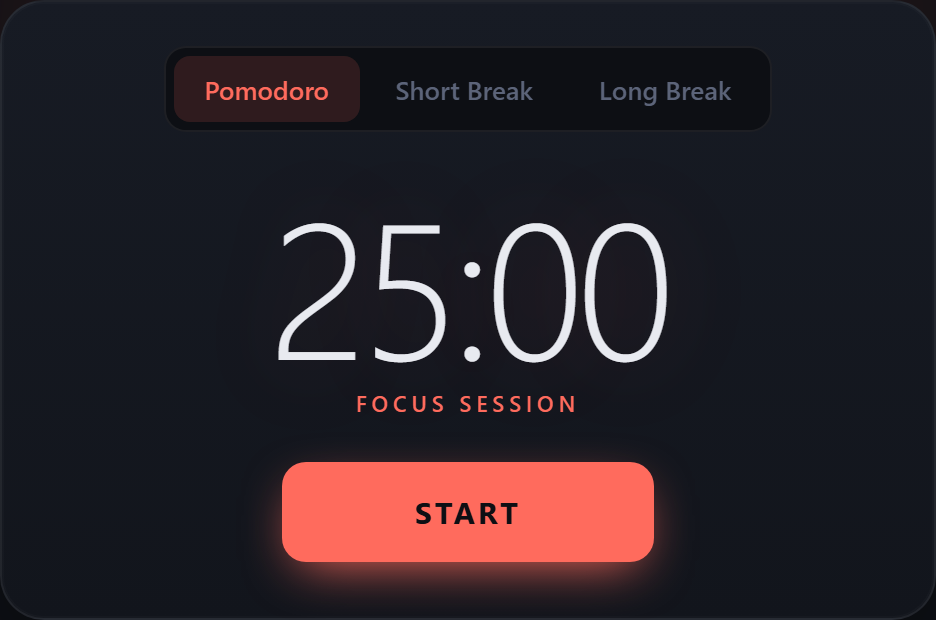
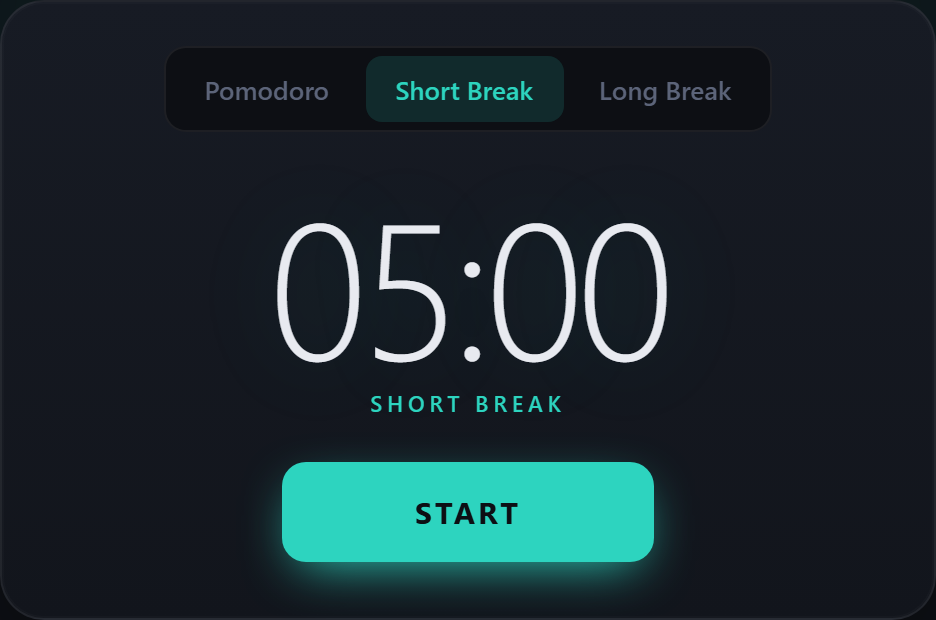
Each mode has its own color, so you can tell what you're supposed to be doing from across the room without reading anything:
| Mode | Color | Default |
|---|---|---|
| Pomodoro | Coral | 25 minutes |
| Short Break | Teal | 5 minutes |
| Long Break | Indigo | 15 minutes |
5.2 How Sessions Chain Together
You don't have to pick the next mode yourself. When a focus session ends, PomoFocus counts it, credits it to your active task, and switches to a break. After every fourth focus session it gives you the long break instead of the short one. The Round number under the timer tells you where you are in the cycle.
06 Working With Tasks
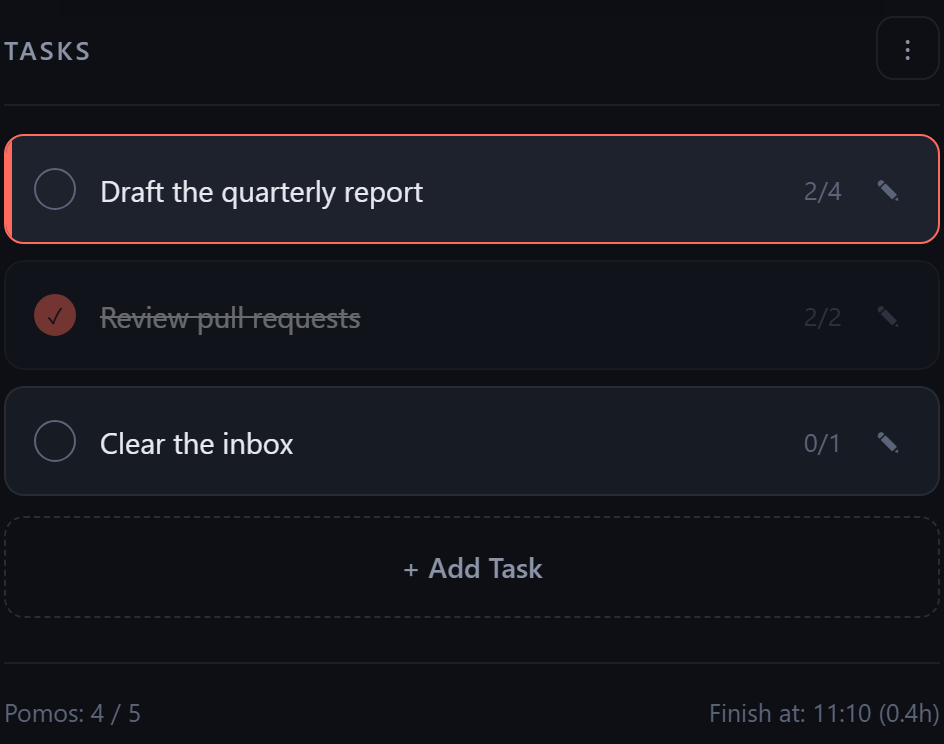
The task list is what turns the timer from a stopwatch into a planning tool. Each task carries an estimate and a running count of what it has actually cost you.
6.1 Reading a Task Row
| Element | Meaning |
|---|---|
| Circle | Click to mark the task done. It stays in the list, struck through. |
| 2/4 | Two sessions spent so far, four estimated. The honest scorecard. |
| Colored edge | Marks the active task, the one that gets credit when a session ends. |
| Pencil | Edit the title or the estimate. |
6.2 The Summary Bar
Under the list, two numbers do a lot of work:
- Pomos: 4 / 5 — Sessions completed against sessions estimated for everything still unfinished.
- Finish at: 11:02 — The clock time you'll be done if you work through the remaining sessions, breaks included. This is the number that makes overcommitment obvious before you've wasted the day on it.
6.3 The Task Menu
The three-dot button next to TASKS offers three cleanups:
| Item | What It Does |
|---|---|
| Clear finished tasks | Removes completed items. Good end-of-day habit. |
| Clear act pomodoros | Resets session counts to zero but keeps the tasks. Useful for a recurring list. |
| Clear all tasks | Empties the list. Your focus history in the Report is not affected. |
07 Reading Your Report
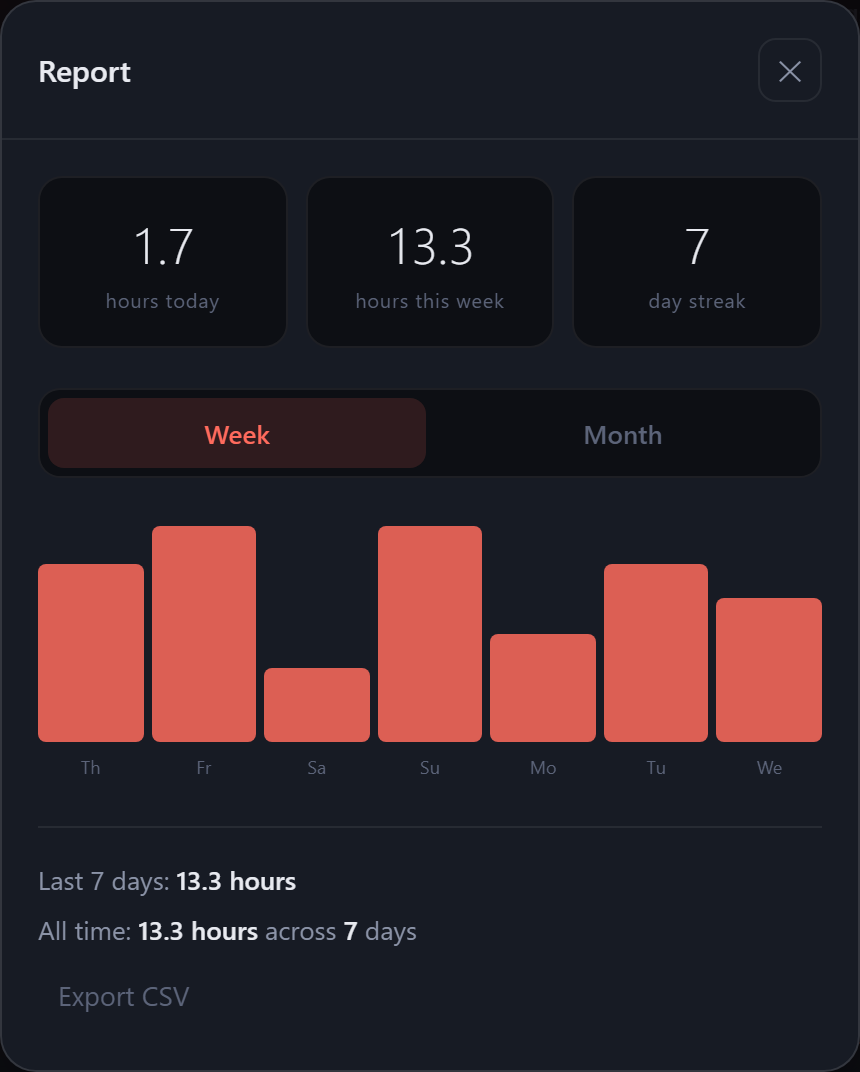
Click Report in the top bar. Every completed focus session is recorded here, which over a couple of weeks turns into something more useful than any to-do list: a truthful record of where your attention actually went.
| Item | What It Tells You |
|---|---|
| Hours today | Focused hours so far today. Breaks are not counted. |
| Hours this week | Rolling total for the last seven days. |
| Day streak | Consecutive days with at least one completed session. Today doesn't break it until the day ends. |
| Week / Month | Switches the chart between the last 7 and last 30 days. |
| Export CSV | Downloads your full history as a spreadsheet file: date, minutes, hours. |
08 Settings
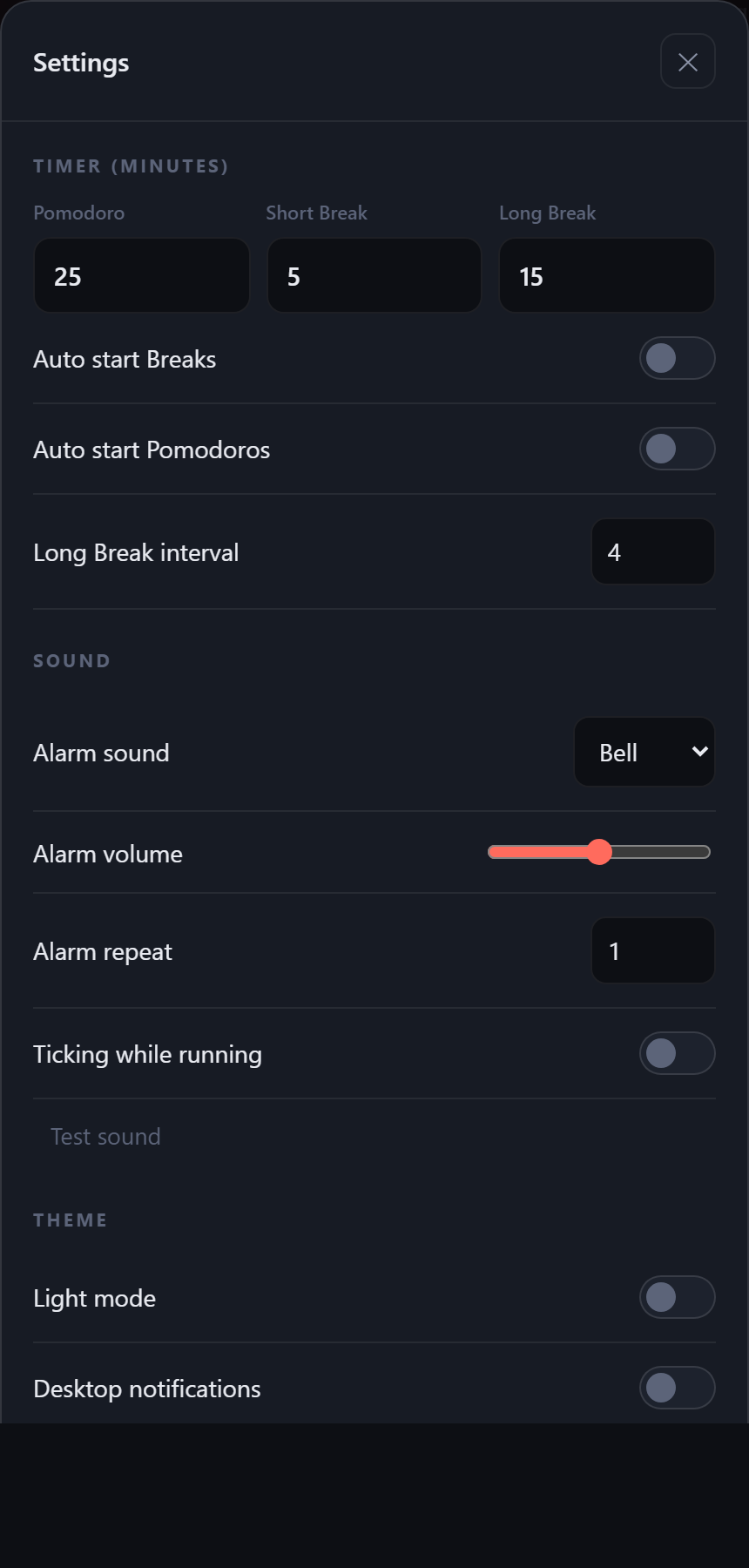
Click Settings in the top bar. Changes apply as soon as you click Done and are remembered next time.
8.1 Timer
| Setting | Description |
|---|---|
| Pomodoro | Length of a focus session in minutes. (Default 25) |
| Short Break | Length of the regular break. (Default 5) |
| Long Break | Length of the longer break. (Default 15) |
| Auto start Breaks | Breaks begin on their own when a session ends. (Default off) |
| Auto start Pomodoros | The next focus session begins on its own after a break. (Default off) |
| Long Break interval | How many focus sessions before a long break. (Default 4) |
8.2 Sound
| Setting | Description |
|---|---|
| Alarm sound | Bell, Beep, Chime, or None. (Default Bell) |
| Alarm volume | How loud the alarm is. (Default 50) |
| Alarm repeat | How many times it rings. Raise it if you wander off. (Default 1) |
| Ticking while running | A soft tick each second during a session. Some find it focusing, others maddening. (Default off) |
| Test sound | Plays the current alarm so you can set the volume without waiting 25 minutes. |
8.3 Theme and Notifications
| Setting | Description |
|---|---|
| Light mode | Switches to a light background. (Default off, dark) |
| Desktop notifications | A system notification when a session ends, so you get it even in another window. Your browser will ask permission the first time. (Default off) |
| Force update | Clears the stored copy of the app and reloads a fresh one. Use only if it seems stuck on an old version. Tasks and history are kept. |
09 Getting the Most Out of It
9.1 Habits That Make It Work
- Plan in the morning, not as you go. Spend two minutes adding the day's tasks with estimates. Check the finish time. Adjust before you start, not at 4pm.
- One task per session. If you switch tasks halfway through, the session's record becomes meaningless. Multitasking is the exact habit this tool is designed to break.
- Actually leave your chair on breaks. Scrolling your phone is not a break for your attention. Stand, stretch, get water, look at something more than ten feet away.
- Write down interruptions instead of chasing them. Keep a scrap of paper handy. When something pops into your head, jot it and keep going. Handle the list during the break.
- Break tasks bigger than five sessions. "Redesign the website" is not a task, it's a project. If your estimate exceeds five pomodoros, split it until each piece is something you could actually finish.
- Compare estimates to reality weekly. The gap between est and act is the most useful number here. Consistently doubling your estimates is normal at first, and it's fixable once you can see it.
9.2 When a Session Gets Interrupted
A colleague comes by, or a call you can't dodge. The traditional rule is strict: an interrupted pomodoro doesn't count, so pause the timer, deal with it, then restart the session from the beginning. That sounds harsh, but it's the point. It makes the true cost of an interruption visible instead of letting it hide inside a "busy" afternoon.
In practice, be pragmatic. For a ten second question, pause and resume. For anything that pulls you out of the work properly, restart the session.
9.3 Adapting the Lengths
| If... | Try |
|---|---|
| You're just hitting your stride when the alarm rings | 50 minute sessions with 10 minute breaks |
| 25 minutes feels like forever and you keep quitting | 15 minute sessions. Short and finished beats long and abandoned. |
| You're wrung out by mid-afternoon | Longer breaks, or a long break every 3 sessions instead of 4 |
| You keep missing the alarm | Raise Alarm repeat, and turn on Desktop notifications |
10 Troubleshooting
| Symptom | Solution |
|---|---|
| No alarm sound | Browsers block audio until you interact with the page. Click Test sound in Settings once per session to wake it up. Also check Alarm sound isn't set to None and the volume isn't at zero. |
| Alarm is late on a phone | Phones aggressively suspend background apps, especially iPhones with the screen locked. The countdown will be correct when you return, but the sound may lag. For phone use, keep the screen on, or rely on the visible timer. |
| My tasks disappeared | Data is stored per browser and per device. A different browser, a different machine, or private/incognito mode all have separate storage. Clearing site data also erases it. |
| Nothing on my phone matches my desktop | Expected. There is no account or sync, so each device keeps its own list and history. |
| Stuck on an old version | Settings → Force update (clear cache). Your tasks and history survive this. |
| No desktop notifications | Turn the setting on, then approve your browser's permission prompt. If you dismissed it earlier, re-enable notifications for the site in your browser's site settings. |
| Timer seems to pause in another tab | It doesn't. The countdown is tied to your system clock and corrects itself the moment you return. The display refreshes on your return, so a brief jump is normal and correct. |
| Warning when closing the tab | Intentional, and only while a timer is running, so a stray close doesn't lose your session. |
10.1 Backing Up Your History
Since everything lives in your browser, take a copy now and then: open Report and click Export CSV. You get a spreadsheet file of every day and how many minutes you focused, which opens in Excel or Google Sheets.